Start with the task, not the appearance
A website can look tidy while making ordinary tasks surprisingly difficult. A visitor might want to find opening hours, request a quote or learn whether an event is suitable for them. If the next step is hard to identify, the design is not serving that visitor well. Usability problems often come from small decisions made across several pages rather than one obvious flaw.
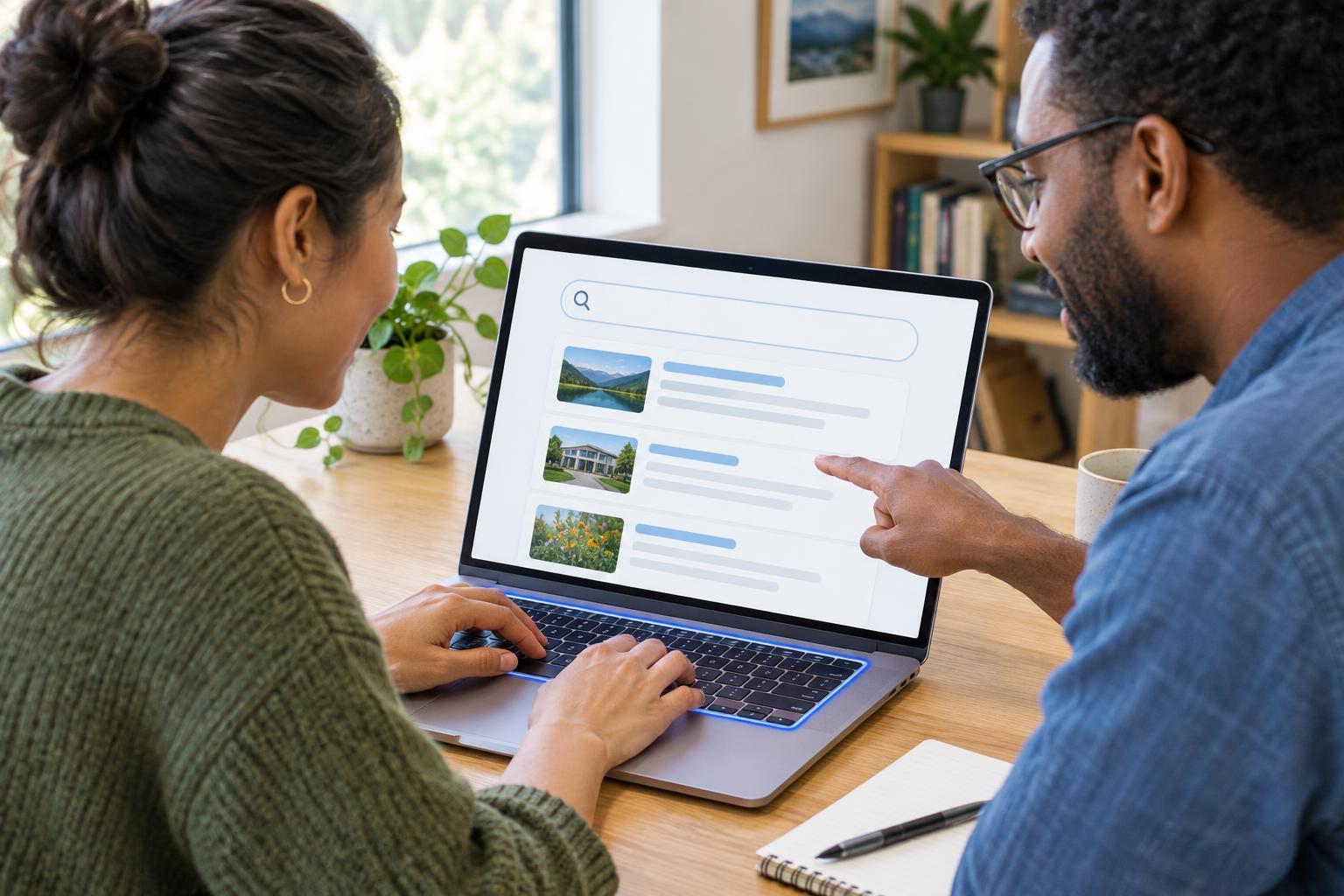
Before changing a page, write down what a visitor is likely to be trying to do and what they need to know first. For a community venue, a useful task might be: “Find the accessible entrance and get in touch about a booking.” Follow that task from the homepage as if you have never seen the site. Note every point where you must guess, backtrack or open a new page to find a basic answer. This gives you a practical way to prioritize fixes.
Replace vague navigation with recognizable paths
Navigation becomes a barrier when labels reflect an organization’s internal language rather than a visitor’s questions. A menu item called “Our World” may sound welcoming, but it offers little clue about whether it contains services, staff information or news. Familiar labels such as “Services,” “About” and “Contact” usually make choices easier to predict. Keep important destinations in consistent places, and make page headings match the promise of the link that led there.
Do not make the menu carry every detail. Group related pages, give them distinct names and provide useful links within the page where someone may need them. For example, a service description can link directly to its pricing or enquiry page instead of asking visitors to return to the menu. Check that people can tell where they are and how to move onward, including when they arrive from a search result rather than the homepage.
Make essential information easy to read and understand
Dense paragraphs, faint text and headings that say little can make a useful page feel like work. Put the main answer near the top, use descriptive headings to separate topics and write links that explain their destination. “Read the booking details” is more informative than “Click here,” especially when someone is scanning a page or hearing its links read aloud. Avoid putting essential instructions only in an image; provide the information as text as well.
Check whether text remains readable when enlarged and whether there is enough contrast between text and its background. Images that convey information need a text alternative that communicates their purpose; decorative images generally do not need a description. If a diagram shows where to enter a building, for instance, the surrounding text should also explain the entrance location. These changes help visitors who use assistive technology and people reading quickly on a small screen.
Remove unnecessary effort from forms and controls
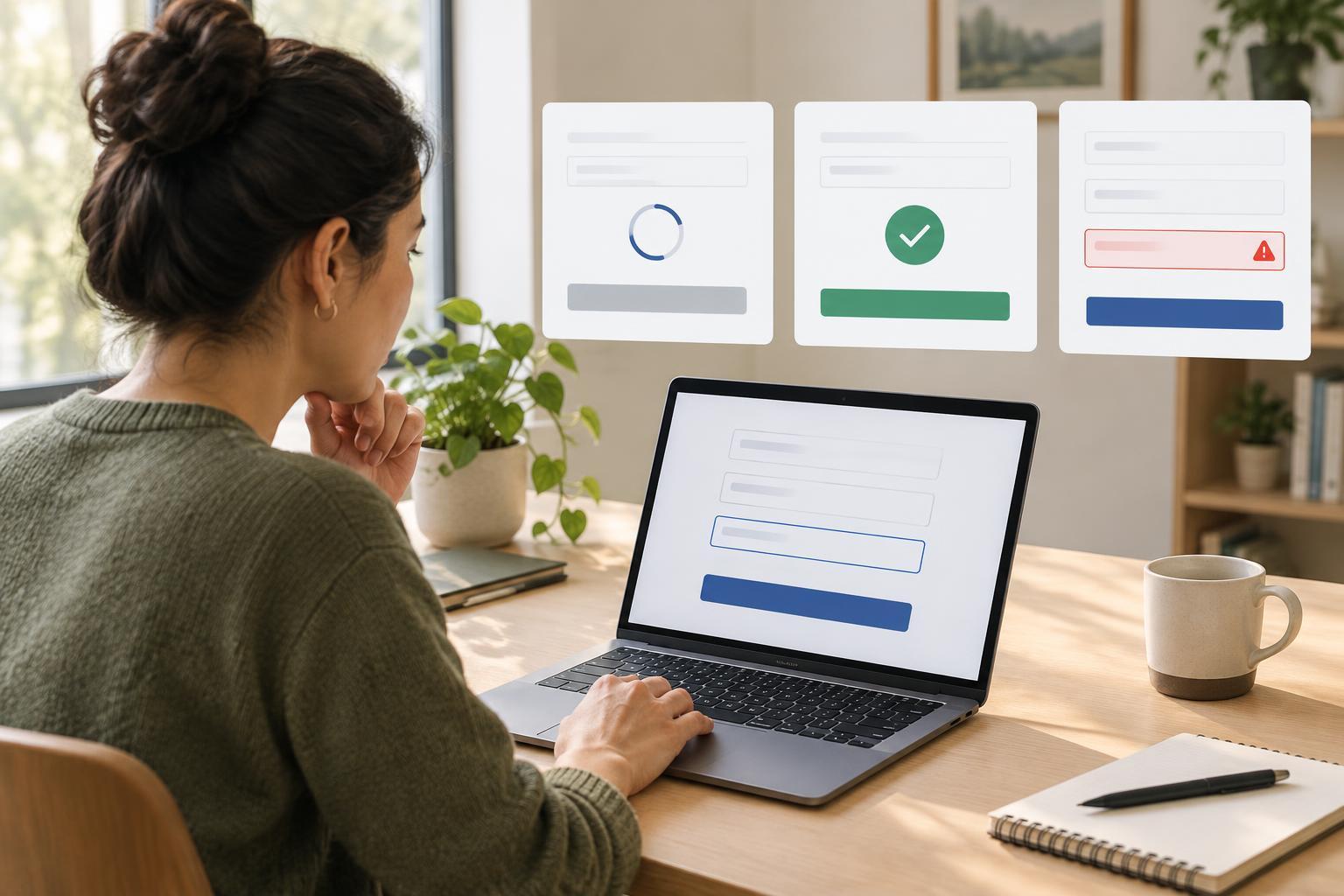
Forms often create barriers at the moment a visitor is ready to act. Asking for information you do not need, marking required fields unclearly or displaying an error only after submission can make a simple enquiry frustrating. Label each field clearly, explain any required format and place a helpful error message beside the field that needs attention. If someone enters a phone number in an unexpected format, tell them what to change without deleting the rest of their answers.
Controls should also behave as their appearance suggests. A button should clearly describe its action, such as “Send enquiry,” rather than “Submit.” People should be able to move through links, buttons and fields with a keyboard and see which item has focus. On a phone, check that controls are easy to select without accidentally hitting a neighboring link. When testing a form, complete it with realistic answers, make a deliberate mistake and confirm that you can recover easily.
Use a short, repeatable usability review
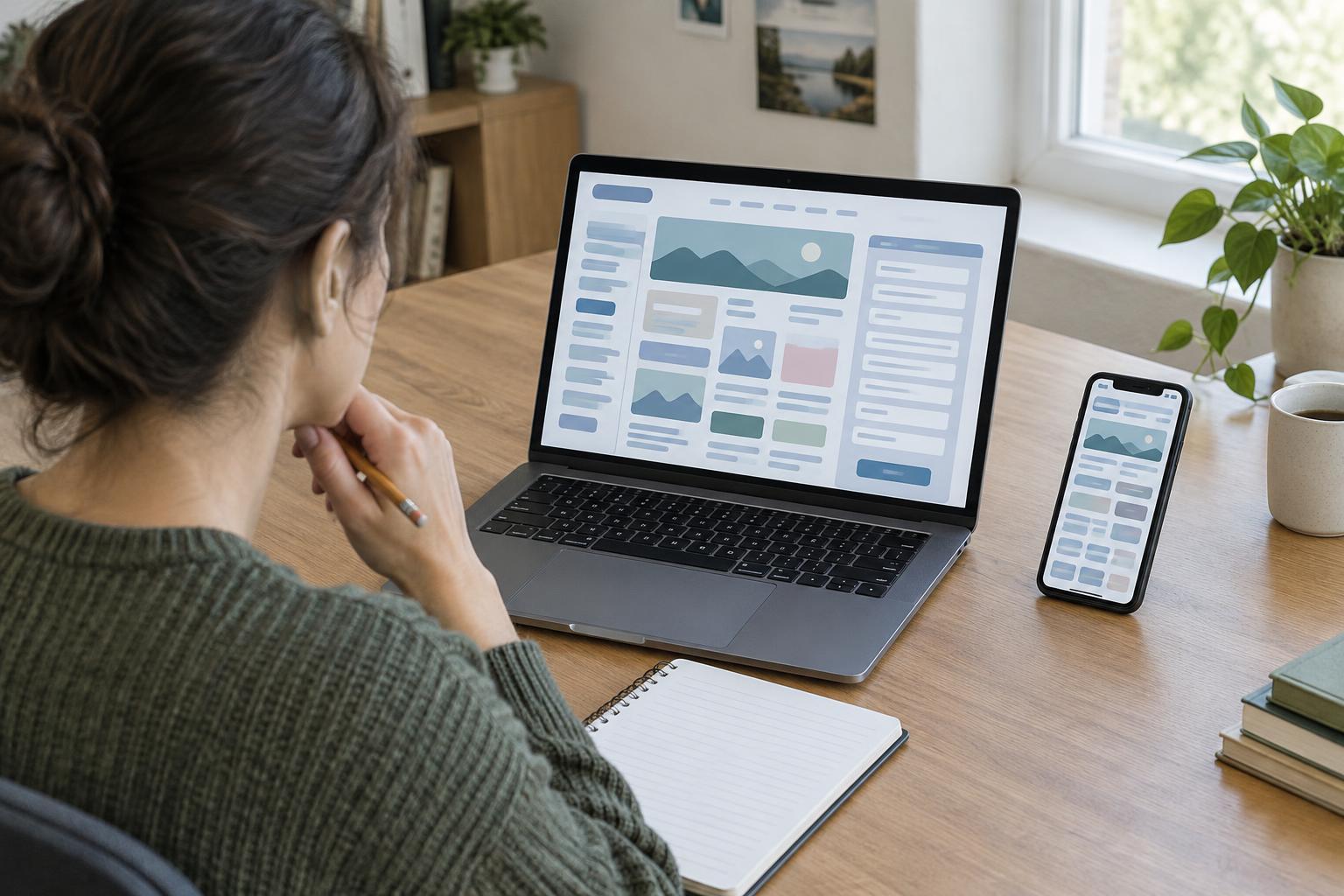
You do not need a complete redesign to reduce avoidable barriers. Choose two or three important tasks and walk through each one on a phone and a computer. Try using only a keyboard, enlarge the text and review pages with images unavailable. Record the task, where you got stuck and what you expected to happen. Ask someone unfamiliar with the site to attempt the same task without coaching; their questions can reveal assumptions your team no longer notices.
Fix the obstacles that prevent a task from being completed before polishing minor wording or decoration. After each change, repeat the task to check that the fix works and has not created a new problem elsewhere. Keep a brief list of remaining issues, with an owner and a next step. A regular review of key paths—finding information, making contact and completing a form—can make usability improvement a manageable part of everyday website maintenance.