Why a keyboard-only test matters
Some visitors navigate websites without a mouse. They may use a keyboard because of a mobility impairment, an injury, a preference, or a device setup. Keyboard access also matters to people who use assistive technology. A page can look clear and still be difficult to use if its links, menus, or forms depend on pointing and clicking.
A keyboard-only test is a useful first check, not a complete accessibility audit. It will not tell you whether every label makes sense to a screen reader or whether the page works for every visitor. It can, however, help you find obstacles in tasks your organization expects people to complete. Set the mouse aside, choose a page and a task, and try to finish it using only the keyboard.
Learn the keys and pick a route
On a typical desktop browser, Tab moves forward through interactive elements such as links, buttons, and form fields. Shift+Tab moves backward. Enter usually activates a focused link or button, while Space often activates a focused button or checkbox. Arrow keys may move within menus, radio groups, and select controls. Escape commonly closes an open menu or dialog. Behavior can vary, so pay attention to what happens rather than assuming every control uses the same keys.
Before testing, choose a realistic route. For example, a community group might ask a visitor to find an upcoming activity, read its details, and submit an interest form. Start at the homepage with a freshly loaded page and no mouse clicks. Work through that route in order. Note which key you pressed, where focus appeared, and whether you could complete each step. This makes the test easier to repeat after a fix.
Follow focus through the page
Press Tab slowly and watch for a visible focus indicator: often an outline, underline, or change in appearance around the current link or control. You should be able to tell where you are without guessing. If focus seems to disappear, keep track of the last control you saw and the next one that becomes visible. The missing indicator may make that part of the page hard to navigate, even if the control technically receives focus.
Check whether the order follows the page’s meaning. From the start of a page, visitors should generally be able to reach navigation, main content, and important actions in a sensible sequence. A “skip to main content” link, if present, should work when activated. Watch for repeated navigation that takes a long time to pass on every page, links that receive focus while hidden, and controls that cannot be reached at all.
Open the site’s menu without a mouse. Can you reach its trigger, open it, move to its links, and close it? Test at least one page at a narrow browser width as well as a wider one, since navigation may change layout. If a menu opens visually but Tab moves behind it, or if focus becomes trapped with no way out, record the exact step where that happens.
Complete a task, including its difficult moments
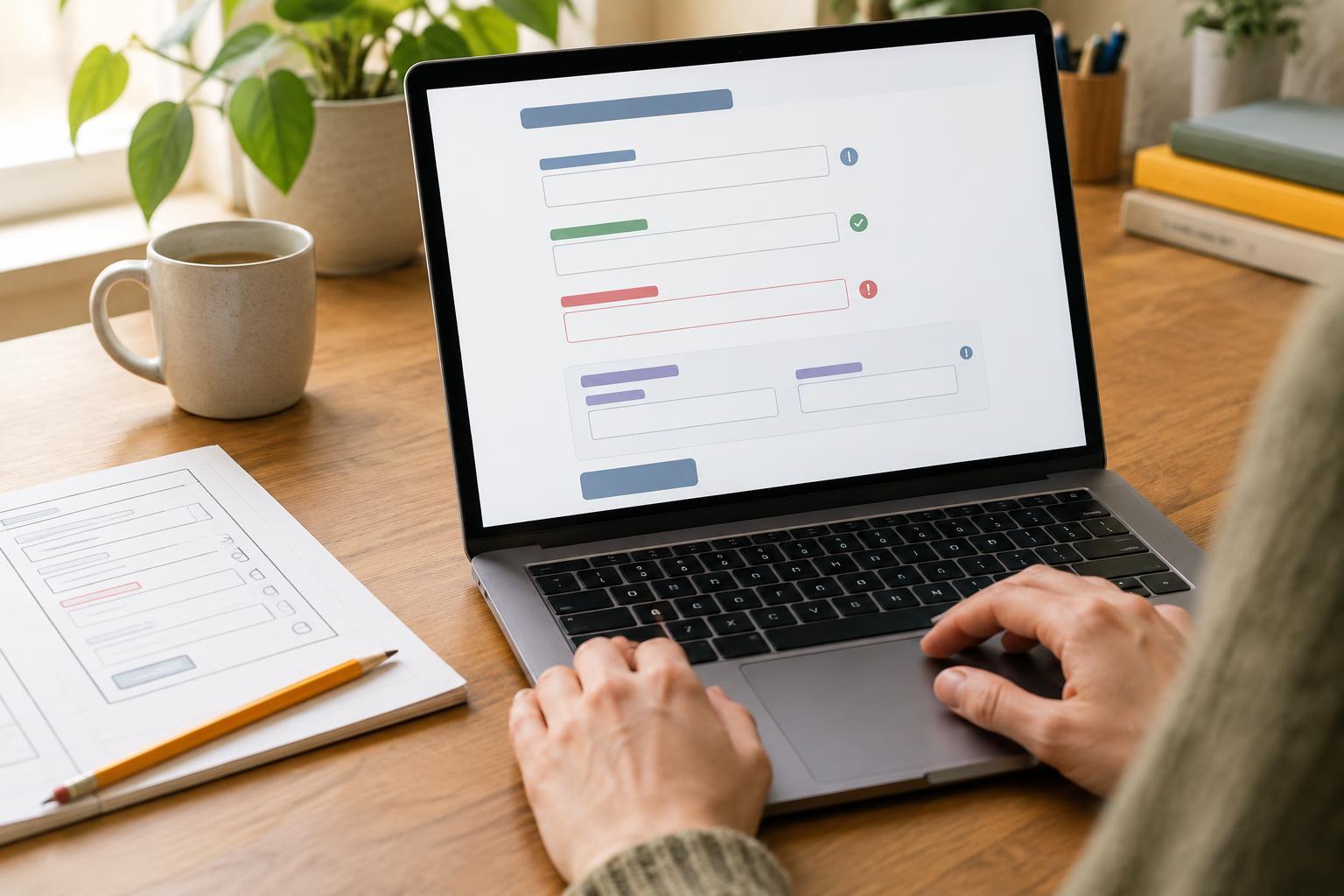
Forms often expose problems that a quick trip through the homepage will miss. Tab through each field and check that the visible label remains clear when the field has focus. Try selecting an option, checking a box, and submitting the form. If the form reports an error, can you find the message, understand which field needs attention, and return to it using the keyboard? Use test information rather than sending a real request unless your organization has a safe way to handle test submissions.
Also try controls that change the page: search suggestions, accordions, filters, pop-up dialogs, and cookie choices where applicable. A control should respond to an expected key and should not leave you uncertain about what changed. If a dialog opens, check that you can use its controls and close it. Then confirm you can continue from a sensible place on the original page.
Record findings and retest fixes
Keep a short log with the page, task, browser, screen width, keys pressed, expected result, and actual result. Instead of writing “menu broken,” write “On the narrow homepage, Tab reaches the menu button and Enter opens it, but the next Tab moves to a link behind the menu.” That description gives a developer or site editor a clear starting point.
Prioritize issues that prevent a visitor from completing an important task, such as reaching a form’s submit button or closing a dialog. Then address confusing focus order and hard-to-see focus indicators. After a change, repeat the same route from the beginning; a fix to one control can affect the next step. Make this check part of routine updates, especially when adding a new menu, form, or interactive feature.