Why the words on a control matter
A visitor looking for a service may scan headings, links and buttons instead of reading a page from top to bottom. Someone using a screen reader may also move from one link or control to the next. In either case, the surrounding sentence may not be available when a label is encountered. “Learn more” gives little direction by itself; “Explore volunteer opportunities” gives the visitor a reason to follow the link.
A useful test is to read the label aloud without the rest of the page. Can you tell what will happen next? The goal is not to make every label long. It is to give each action enough meaning to help someone choose confidently.
Name the destination or action
Links usually take people somewhere: another page, a document, an email address or a point on the same page. Name that destination or its purpose. Instead of “Click here to view our hours,” link the words “View opening hours.” Instead of making a whole sentence a link, use the shortest phrase that clearly identifies where it leads. This also makes the page easier to scan.
Buttons usually do something on the current page, such as submitting a form, opening a menu or applying a filter. Use a verb that describes that action: “Send enquiry,” “Open menu” or “Apply filters.” A vague “Submit” can be improved when the form’s purpose is specific. Keep the visible wording familiar and direct; people should not have to interpret an internal process name to complete a task.
Match the promise to the result. A control labelled “Download application form” should not unexpectedly lead to a general resources page. If a link opens a PDF or starts a download, mentioning the format or action can help set expectations when that detail matters.
Distinguish repeated links and controls
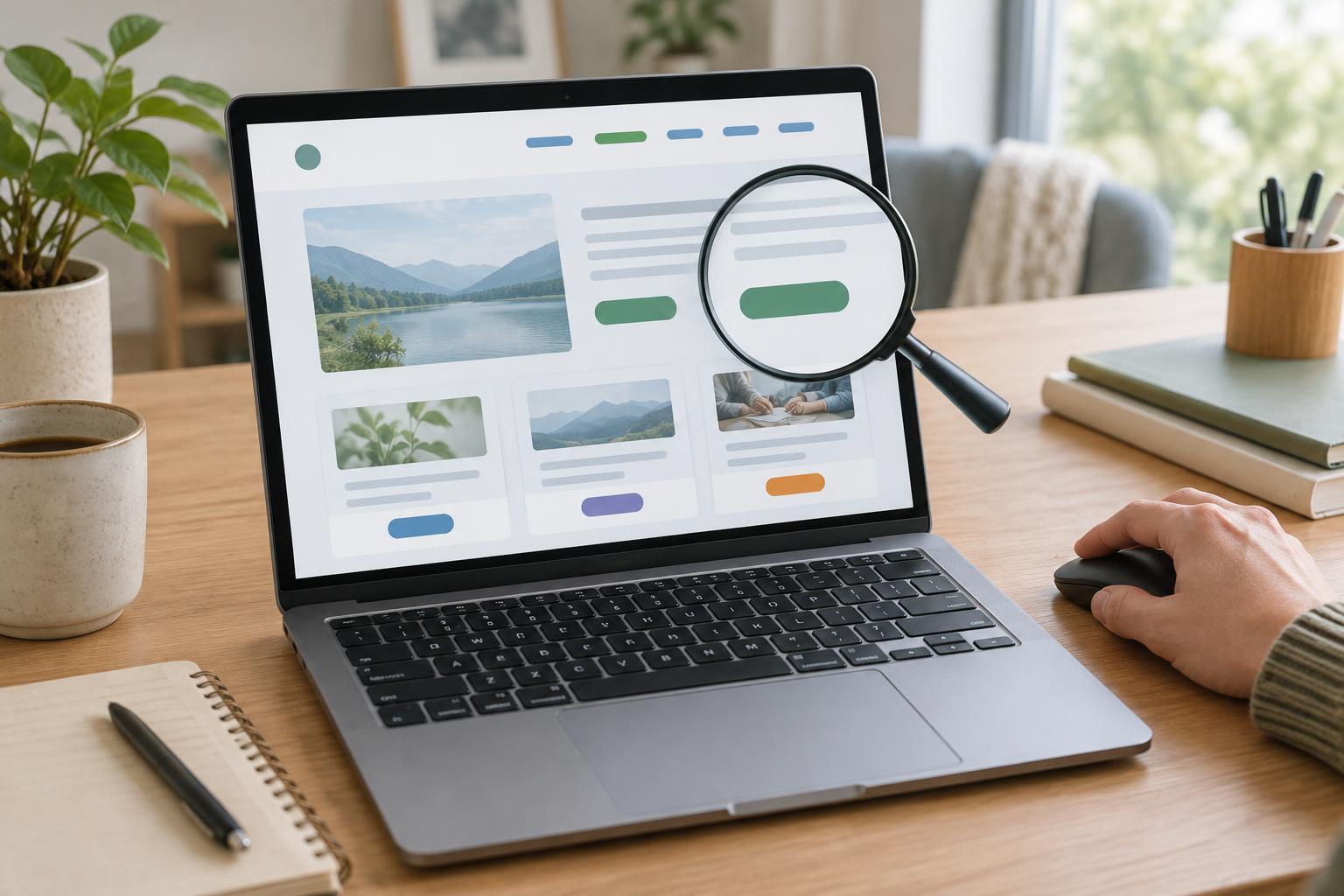
Small organizations often publish lists of events, services or staff profiles. A row of cards with identical “Read more” links can be hard to navigate out of context. Give each link a meaningful label, such as “Read about the community garden project” and “Read about the food pantry.” The visible label is usually the simplest place to provide that distinction.
Sometimes a compact design cannot show the full phrase. In that case, a developer may add text that is visually hidden but remains available to assistive technology, making “Read more” into “Read more about the community garden project.” Check the resulting accessible name rather than assuming the extra text worked. An aria-label can also supply a name in some situations, but it may replace the visible text that a screen reader announces. Keeping the visible and announced names aligned helps avoid confusion, especially for people who use speech commands.
The same principle applies to repeated buttons. If each item in a list has a “Remove” button, make it clear which item each button removes. You might use a label such as “Remove Tuesday workshop” where space allows. If removing an item has serious consequences, clarity in the label is important, but the overall interaction may also need a separate confirmation step.
Give icons and images a clear purpose
An icon alone does not always explain an action. A magnifying glass might mean search, zoom or inspect. Where possible, pair an icon with visible text such as “Search site.” If the design uses an icon-only button, give the button an accessible name that describes its action, and test whether that name changes when the action changes. For example, a menu control may need to say “Close menu” once the menu is open.
When an image is the only content inside a link, its text alternative needs to communicate the link’s purpose, not merely describe the image. A linked logo that leads to the homepage might be named “Bolster Digital home.” Decorative icons placed beside already clear text usually do not need to add another spoken label. Otherwise, a visitor may hear the same action twice.
Use a quick review workflow
Start with a page people use often, such as a services page or contact form. Make a list of its links and buttons in reading order, without copying the surrounding paragraphs. Look for repeated phrases, unexplained icons and labels that promise a different result from the one they deliver. Rewrite the visible text first, then review any accessible names supplied separately.
Next, navigate the page using a keyboard. Check that you can reach each control, see where focus is, and activate the intended action. If a screen reader is available, listen to the list of links and move through the buttons. This is a practical check, not a replacement for broader accessibility testing. Revisit labels whenever pages, forms or destinations change: a clear name only stays useful while it accurately describes what the control does.