Start with the action, not the button
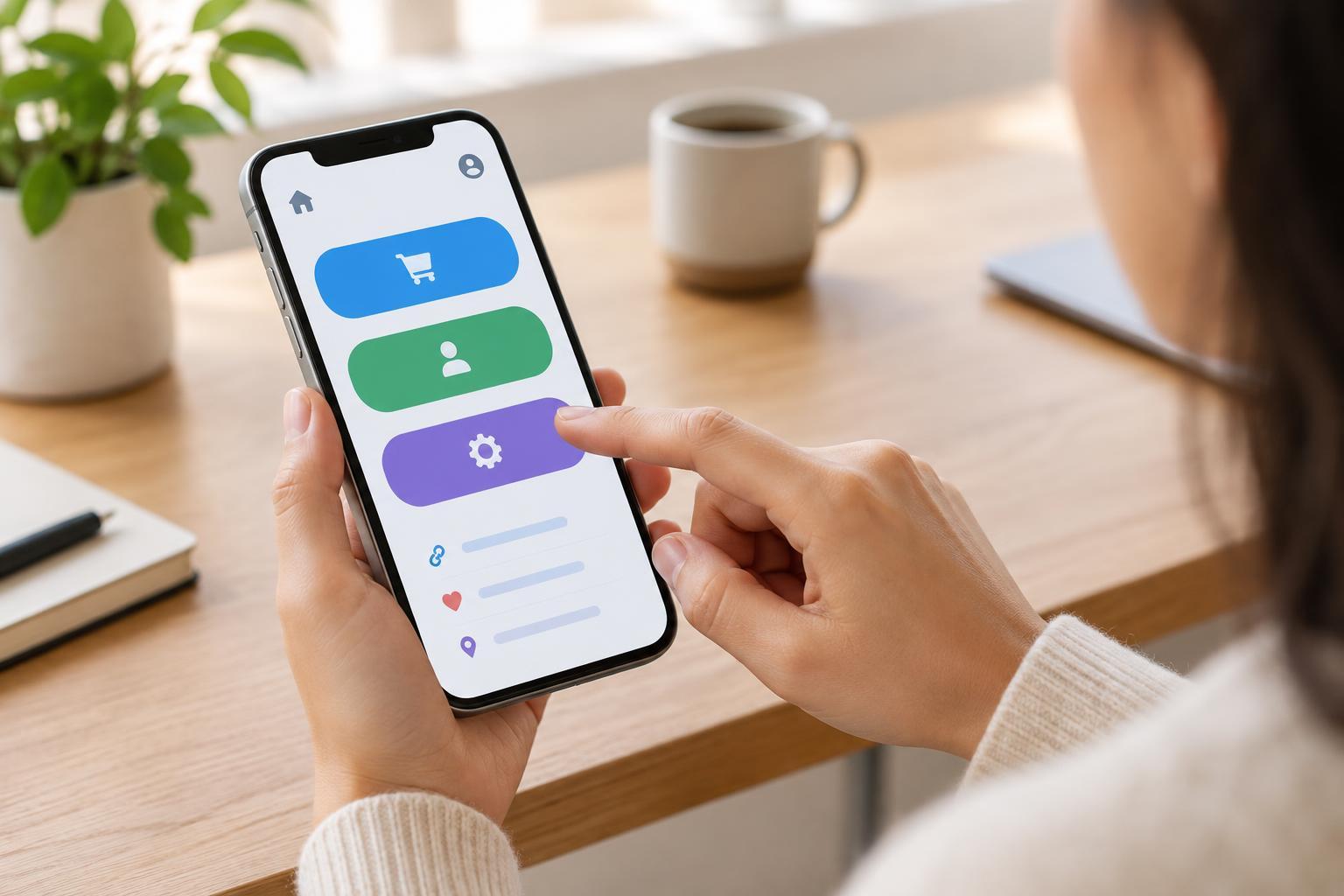
A visitor using a phone may be standing in a queue, holding the device with one hand or trying to complete a task quickly. In those conditions, a link that is easy to see may still be hard to tap. The relevant size is the clickable or tappable area, often called the touch target, rather than the size of the text or icon inside it.
Begin by listing the actions people need most on each page. A community organization might prioritize “Find opening hours,” “Get directions” and “Donate.” A service business might prioritize “Call,” “Request a quote” and “View services.” Give those actions room before adjusting less important controls. This helps prevent a crowded header or footer where every link competes for the same small space.
Give targets enough room
A practical starting point for a standalone button or icon control is a touch target around 44 by 44 CSS pixels. This is a design target, not a promise that every person can use every control comfortably. The visible button can look smaller if padding extends its tappable area, but the entire target should activate the same action. For text buttons, use enough horizontal padding that the label does not feel cramped.
Spacing matters as much as size. If two targets sit directly against each other, a visitor can activate the wrong one even when both are reasonably large. Leave a clear gap between nearby actions, particularly when their consequences differ. For example, separate “Submit request” from “Cancel,” and avoid placing a small “Remove” icon immediately beside an “Edit” icon. When space is tight, stacking controls is often better than shrinking them to fit one row.
Check controls in context rather than applying one fixed height everywhere. A full-width button needs comfortable vertical padding; a compact navigation link may need additional space around its label. If a label wraps onto two lines, let the target grow with it instead of fixing a height that clips the text.
Handle links and icons with care
Inline links within a paragraph behave differently from standalone buttons. Giving every linked phrase a large rectangular box would disrupt reading and create awkward gaps between lines. Keep inline links readable and visually distinct, then avoid packing several short links together in one sentence. Where a page presents a list of destinations, use separate list items with generous line height and make each item easy to select.
An icon alone can be especially difficult to tap or interpret. A menu icon, search icon or close control should have a generous tappable area even if the drawing remains small. Give it an accessible name that describes its action, such as “Open menu,” and make its purpose clear in the surrounding design. Do not rely on color alone to distinguish a link from ordinary text. Underlines are a useful default, particularly in body copy.
Make sure the visible and tappable areas agree with what visitors expect. A large card that looks clickable should not require a precise tap on a tiny title inside it. Conversely, do not make a whole card open one page if it also contains other interactive controls; overlapping targets can produce confusing results.
Plan for narrow screens and changing content
Review the layout at the narrowest screen width your site is likely to support, then check what happens when text becomes longer. Navigation labels, translated content and larger text settings can all change the available space. Allow buttons to wrap or move to a new row rather than reducing their padding until they are difficult to use.
Pay particular attention to repeated interface elements. A header may be spacious on the home page but crowded when an announcement banner appears. A form may look fine until an error message is shown beneath a field. Establish a few reusable button and link styles so new pages inherit sensible target sizes and spacing without requiring each editor to solve the problem again.
Test real tasks, then refine
Use a phone to walk through a small set of common tasks: open the menu, follow a service link, complete a form and correct a mistake. Try each task with a thumb as well as a finger. Notice where you hesitate, tap twice or accidentally select a neighboring action. Repeat the check with larger text enabled, and use a keyboard to confirm that links and buttons have a visible focus indicator and a sensible order.
When a control proves difficult, identify the cause before changing its appearance. Is the tappable area too small? Are two actions too close? Is the label unclear, or does another element cover part of the target? Fixing the underlying issue is more reliable than simply enlarging every button. A short review whenever navigation, forms or page templates change can keep touch interactions usable as the site grows.